Meta Pixel Access Sharing Guide
facebook5 viewsUpdated at 10/9/2026
Meta Pixel Access Sharing Guide
I. Core Values of a Meta Pixel
1. Unified Cross-Account Data:
Ensures that multiple ad accounts use the same set of conversion data, making it easier to optimize and measure ad performance consistently.
2. Efficient Team Collaboration:
Allows you to securely share data with agencies or team members while retaining full administrative control.
3. Data Continuity Assurance:
Even if one ad account or Business Manager (BM) encounters an issue, the shared pixel data remains safe and can continue to be used for optimization in other accounts.
II.Step-by-Step Tutorial
1. Preliminary preparation
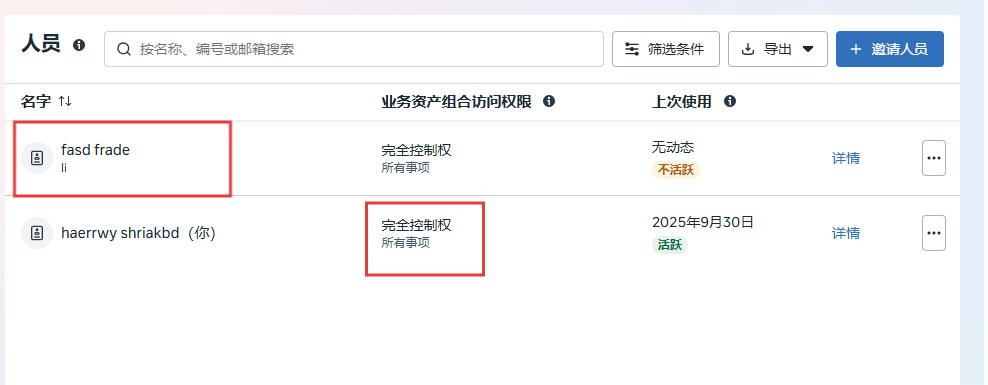
- You must have complete control of your business portfolio.
- Add the users you want to share your pixel with to your business portfolio.
- Add a pixel to your business portfolio.
2.Adding users to the Meta Pixel
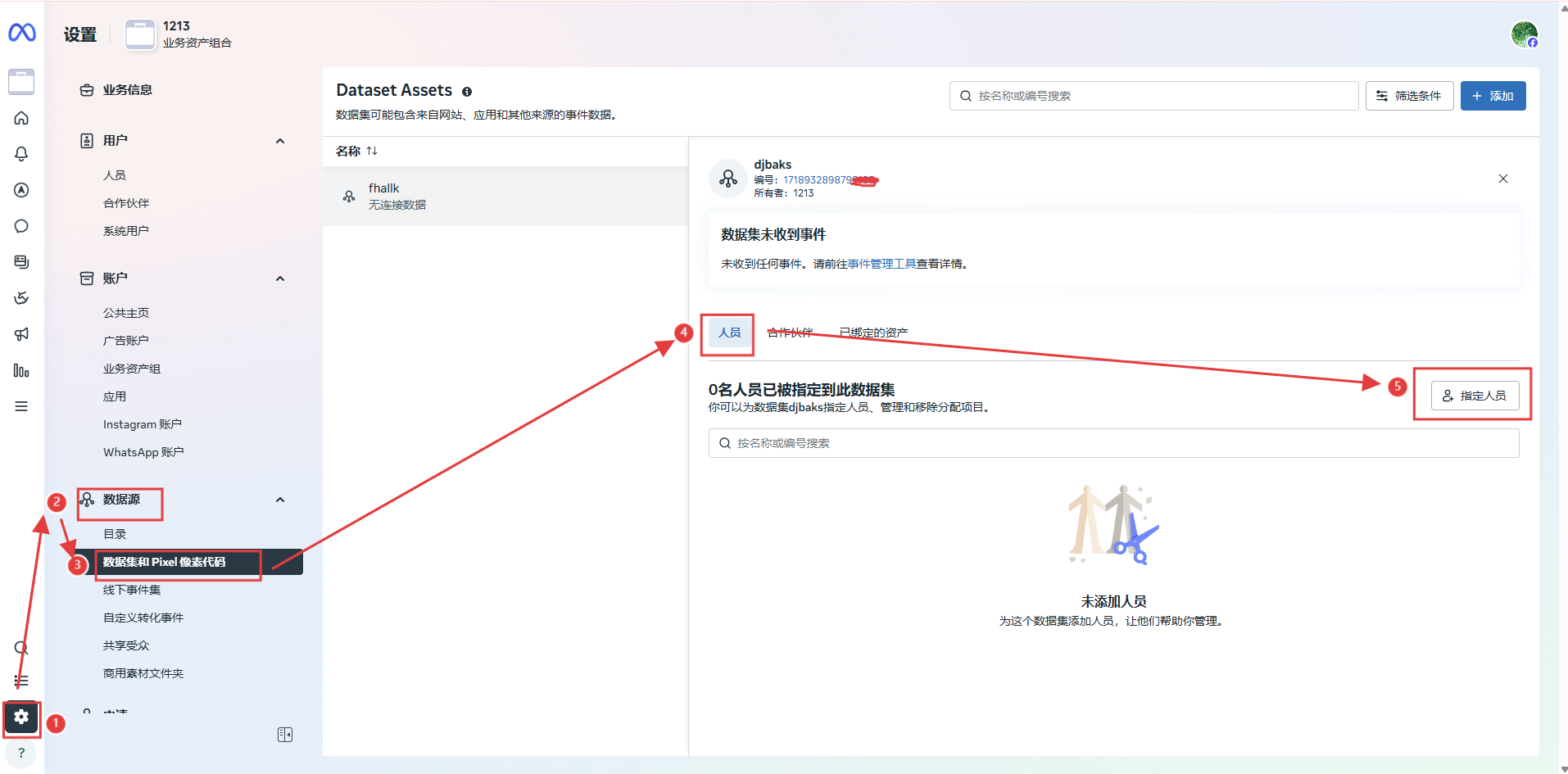
- Go to Business Settings in Meta Business Suite .
- Under Data Sources , click Datasets.
- Select the pixel you want to add users to.
- Click Assign User .
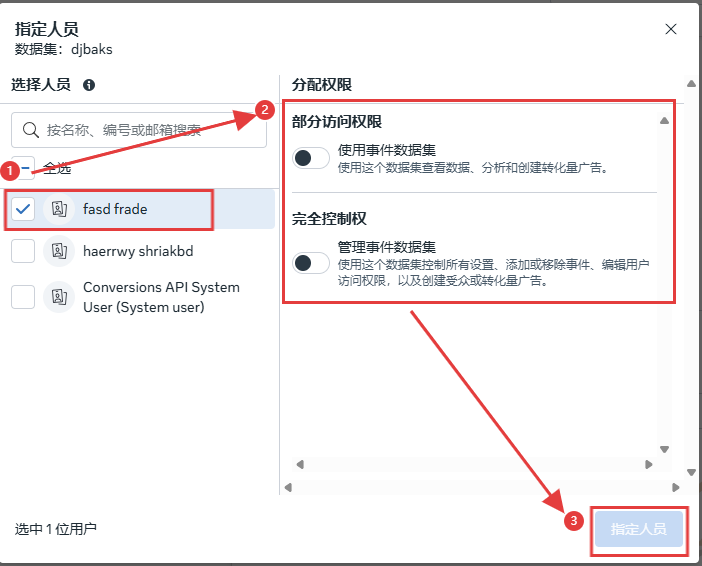
- Select the users you want to add and assign them permissions for the tasks you want them to handle.
- Click Assign .
3. Assign a Partner Business to Access Your Catalog
- To assign a partner business to your catalog:
- Go to Settings in Meta Business Suite and select your business.
- Click Data Sources on the left, then choose Catalogs from the dropdown menu.
- Select your catalog.
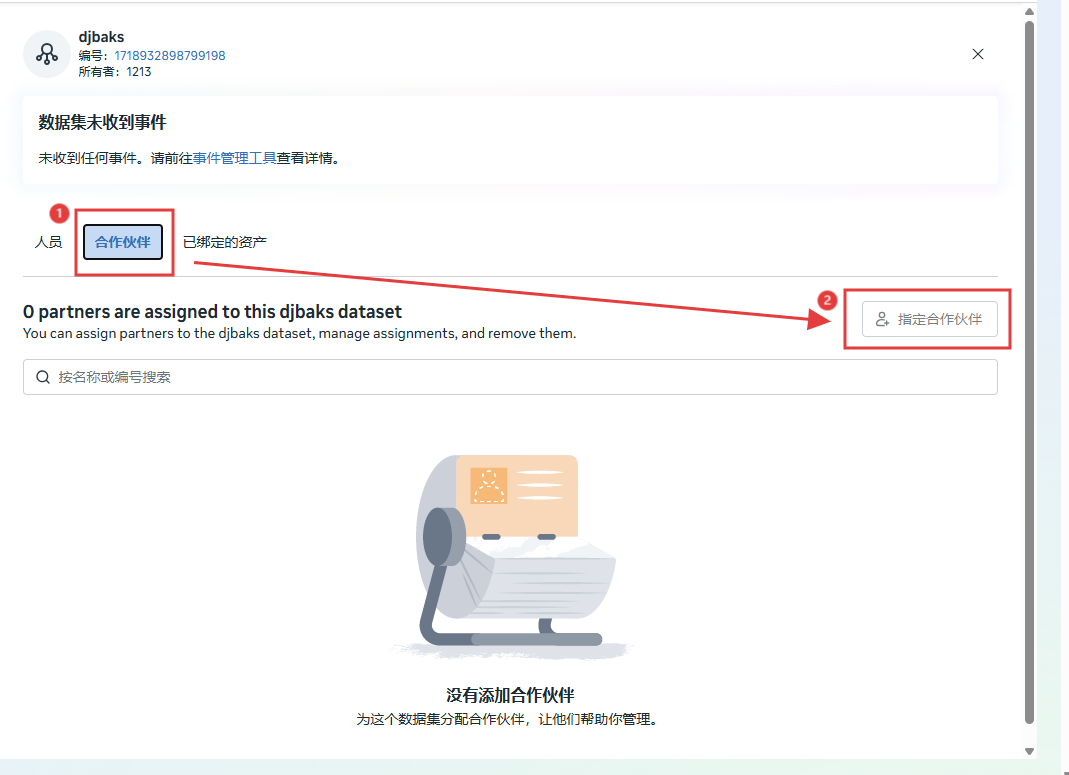
- Click Assign Partners.
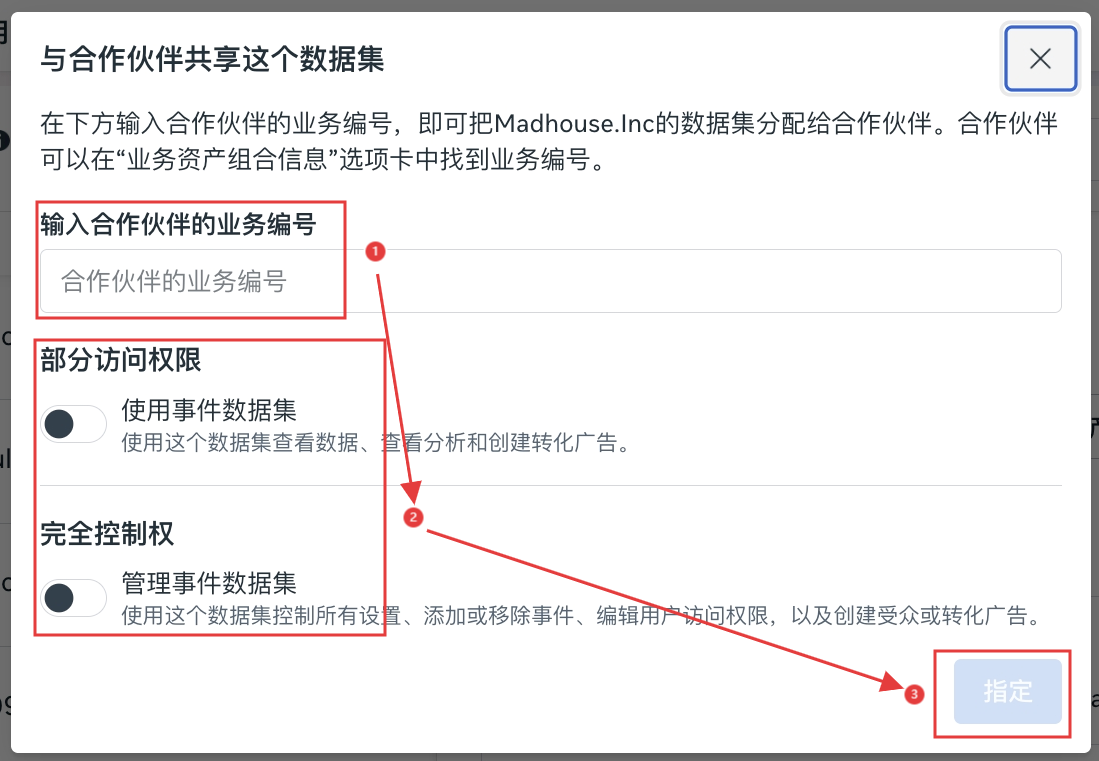
- Enter the partner’s Business ID, then select Partial Access or Full Control. Click Next, then Finish.
Was this article helpful?